File Operations - Multi-Select, Copy / Move and Trash
Multi-select with bulk actions, download of a selection, conflict handling on copy / move, and the trash with undo. All of these features are new in Repository 3 and switched off by default.
Multi-Select
Setting: File Operations → Multi-Select
With Multi-Select, the file table gets a checkbox column:
- Click a checkbox to select a file or folder.
- Select all (checkbox in the table header) selects all items of the current folder, across all pages of the table. If the table is filtered with the search field, only the matching items are selected.
- Shift+click selects a range of items, Ctrl+click (Cmd+click on the Mac) adds or removes single items, Space selects the highlighted item, and Escape clears the selection.
As soon as items are selected, a selection bar shows the number of selected items and the available bulk actions:
- Download (with the permission Download Selection as Zip, see below)
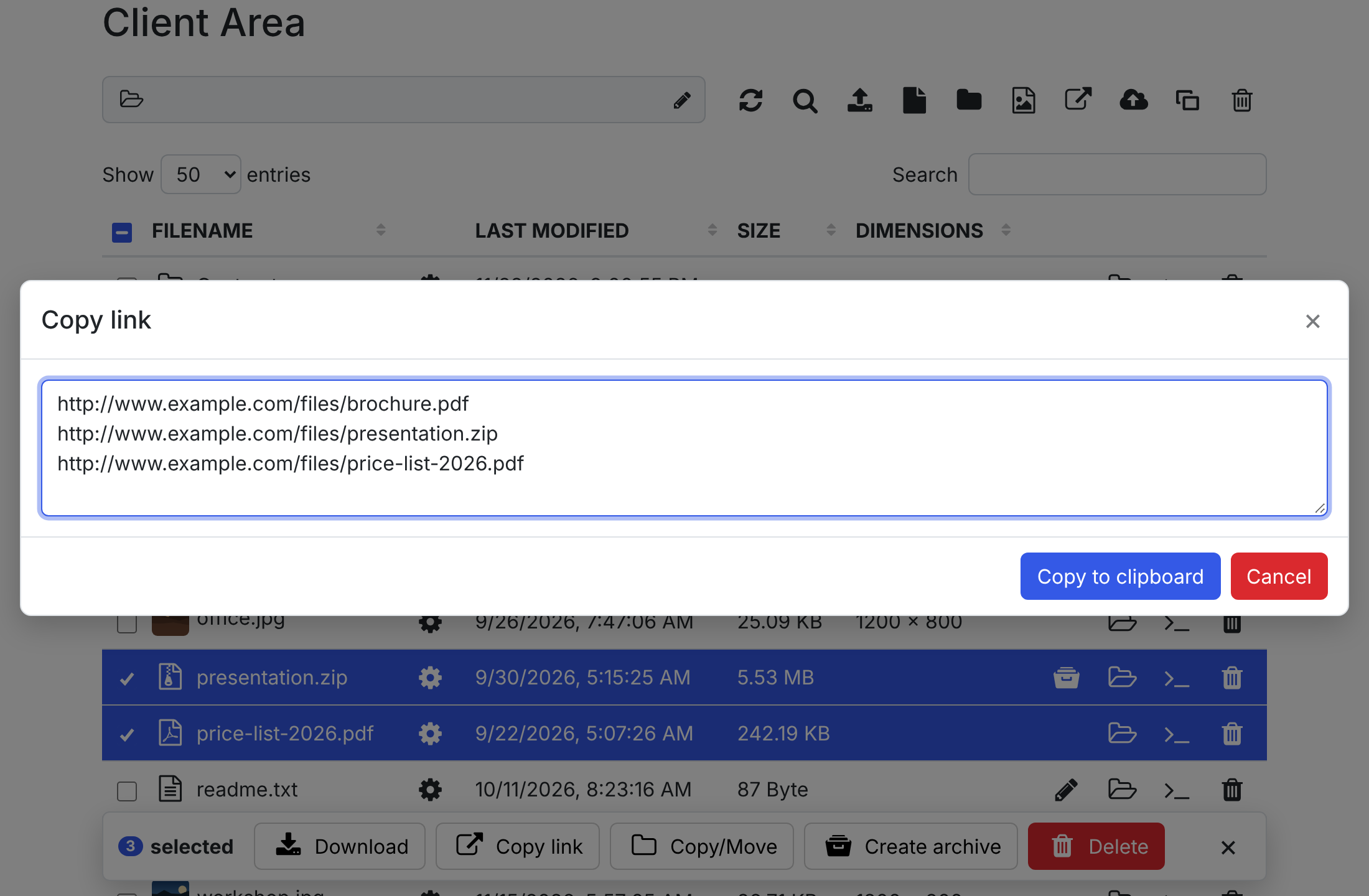
- Copy link of all selected items
- Copy / Move
- Create archive
- Delete
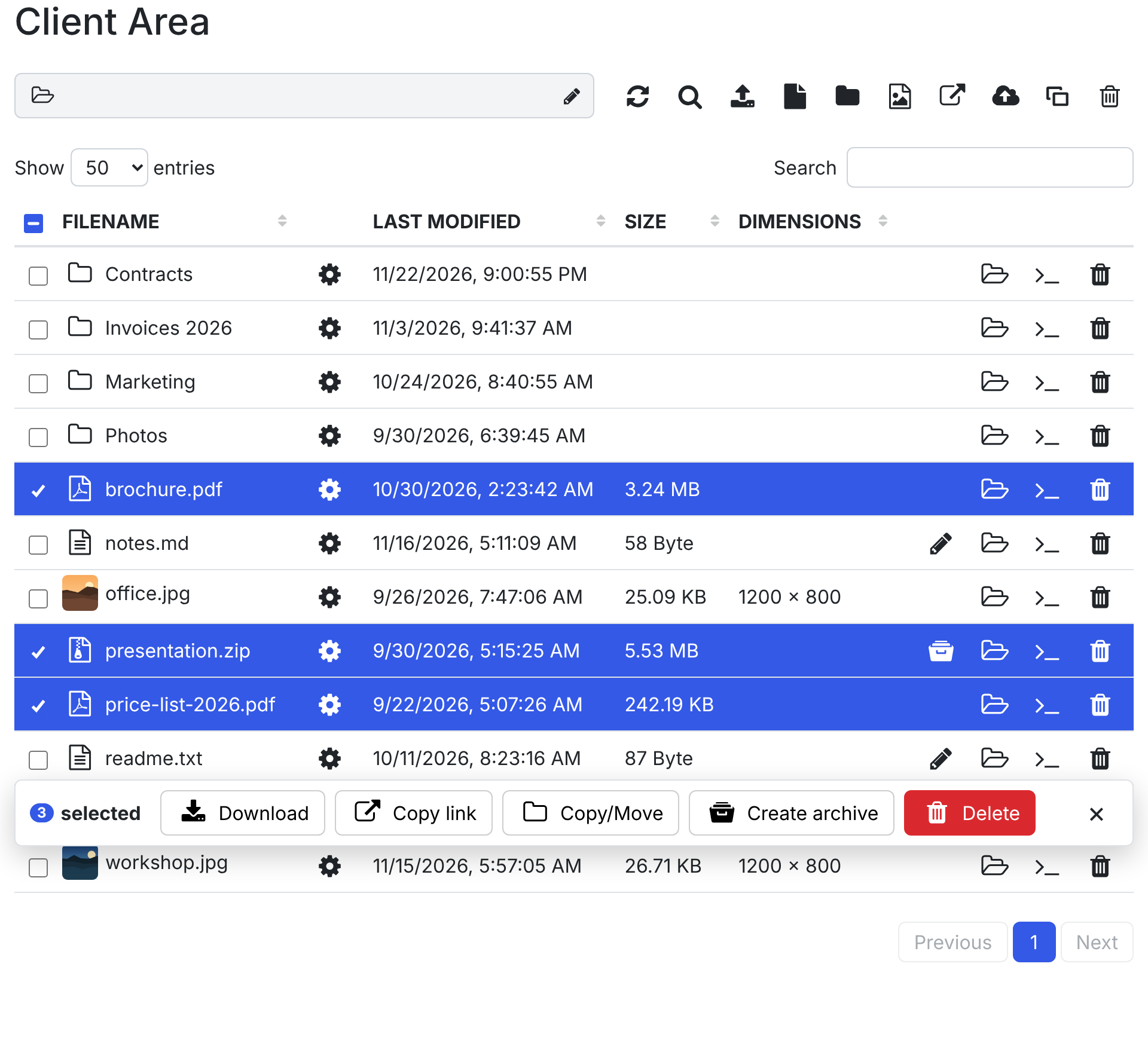
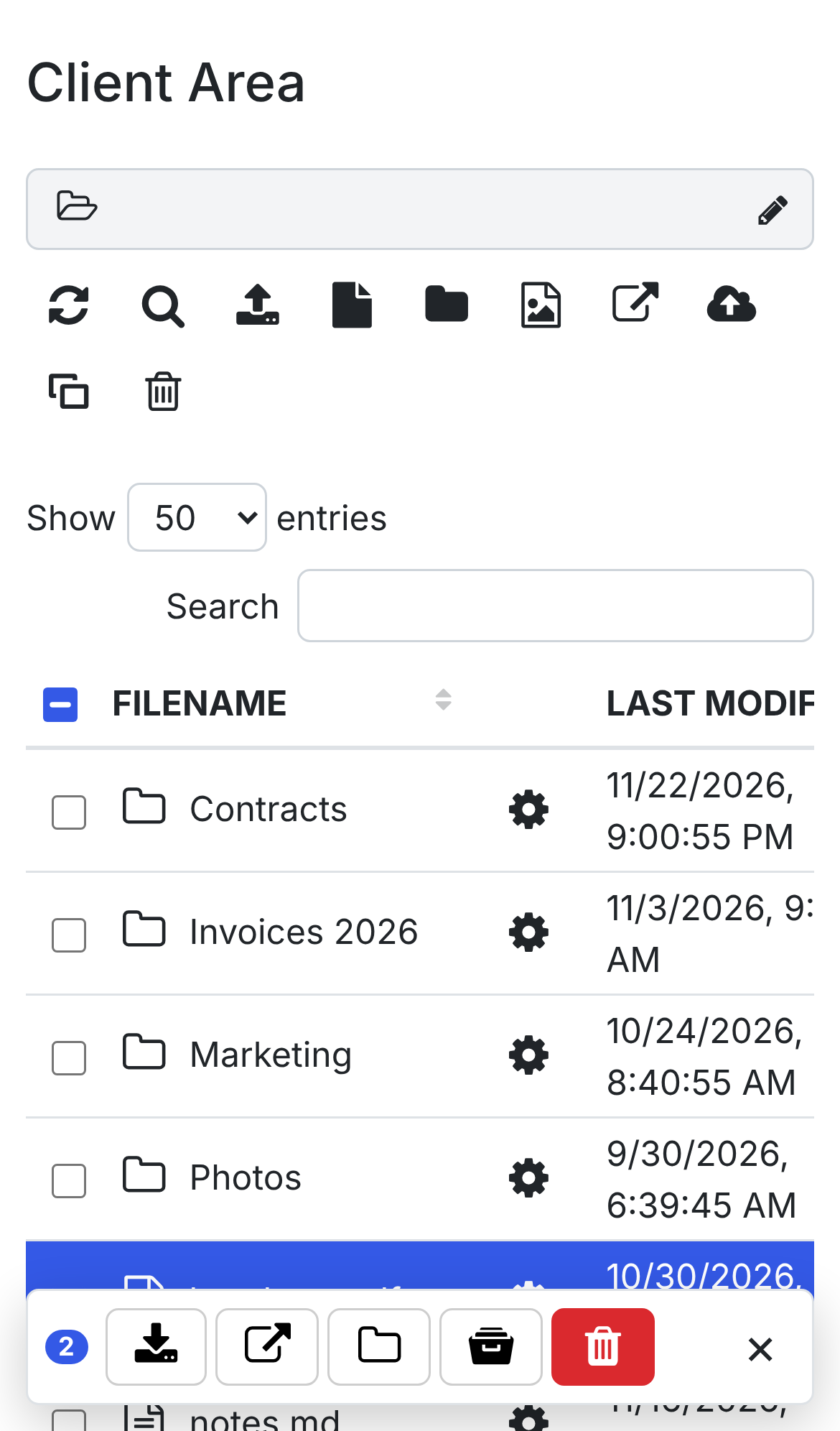
The actions follow the permissions. On phones, the selection bar only shows the icons.
Without Multi-Select, Repository behaves as before: items can be selected with Ctrl/Cmd+click or Space, and the actions are available in the context menu (right click).
Copy Links
The "Copy link" dialog lists the links of all selected items and has a Copy to clipboard button. This is useful to send links of several files at once.
Download Selection
Setting: Permissions → Download Selection as Zip (for administrators and clients)
Several selected files and folders are downloaded as one zip file, from the selection bar or the context menu. If only one file is selected, it is downloaded directly. Folders (including their subfolders) are only included if Zip Subfolder and Download is also enabled.
Ask Before Replacing on Copy / Move
Setting: File Operations → Ask Before Replacing on Copy / Move
When you copy or move items into a folder where items with the same names already exist, Repository shows the existing names and asks:
- Replace: the existing items are replaced.
- Skip: the existing items are kept, and only the other items are copied or moved.
- Cancel: nothing is changed.
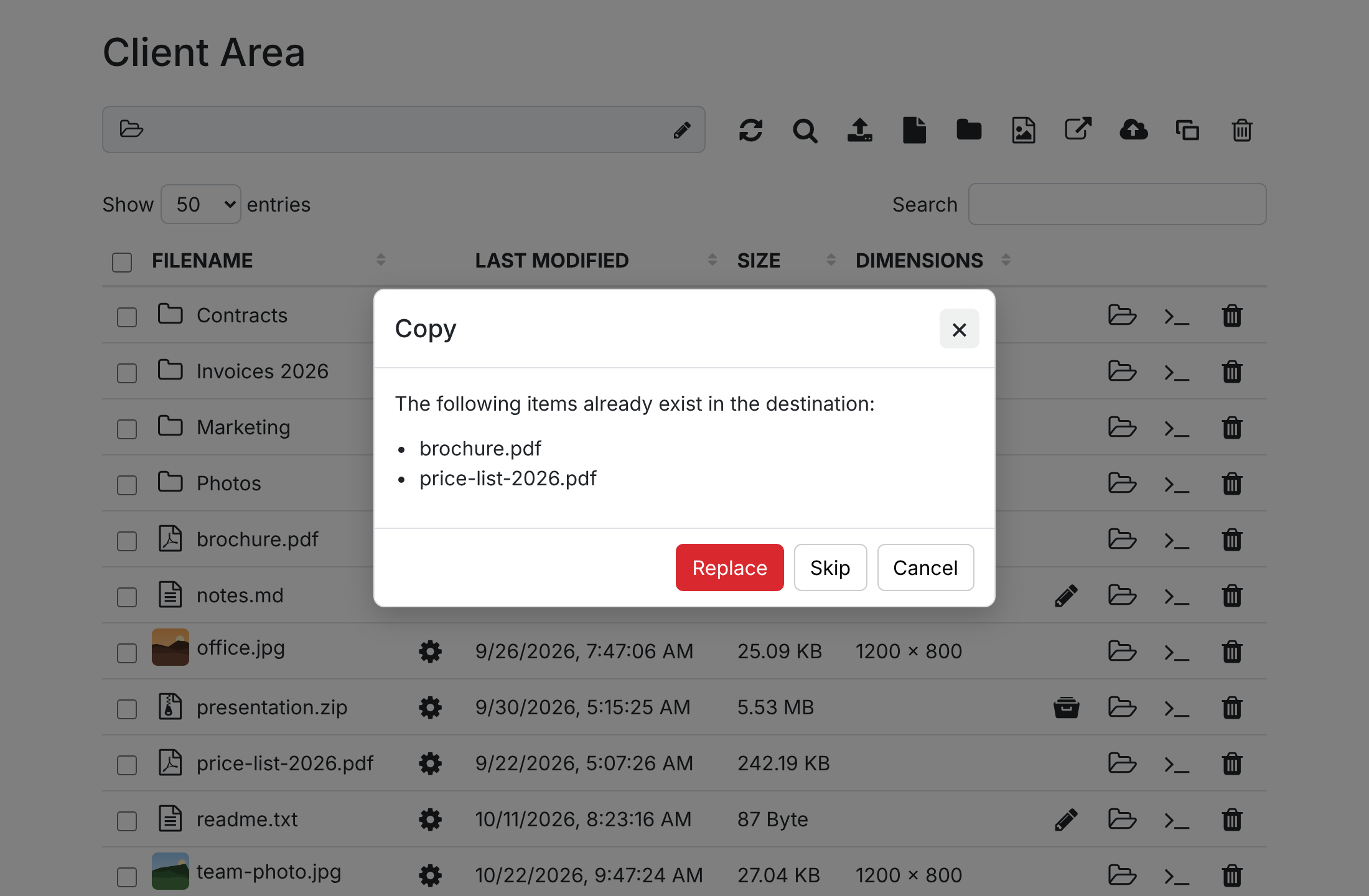
This also works for drag and drop. Without this setting, existing items are overwritten as in Repository 2.
Independently of this setting, Repository 3 refuses to copy or move an item onto itself, or a folder into one of its own subfolders.
Trash
Settings: File Operations → Trash and Keep Items in Trash
With the trash enabled, deleted files and folders are not removed immediately, but moved into a trash:
- Right after deleting, the notification offers an Undo button which restores the deleted items.
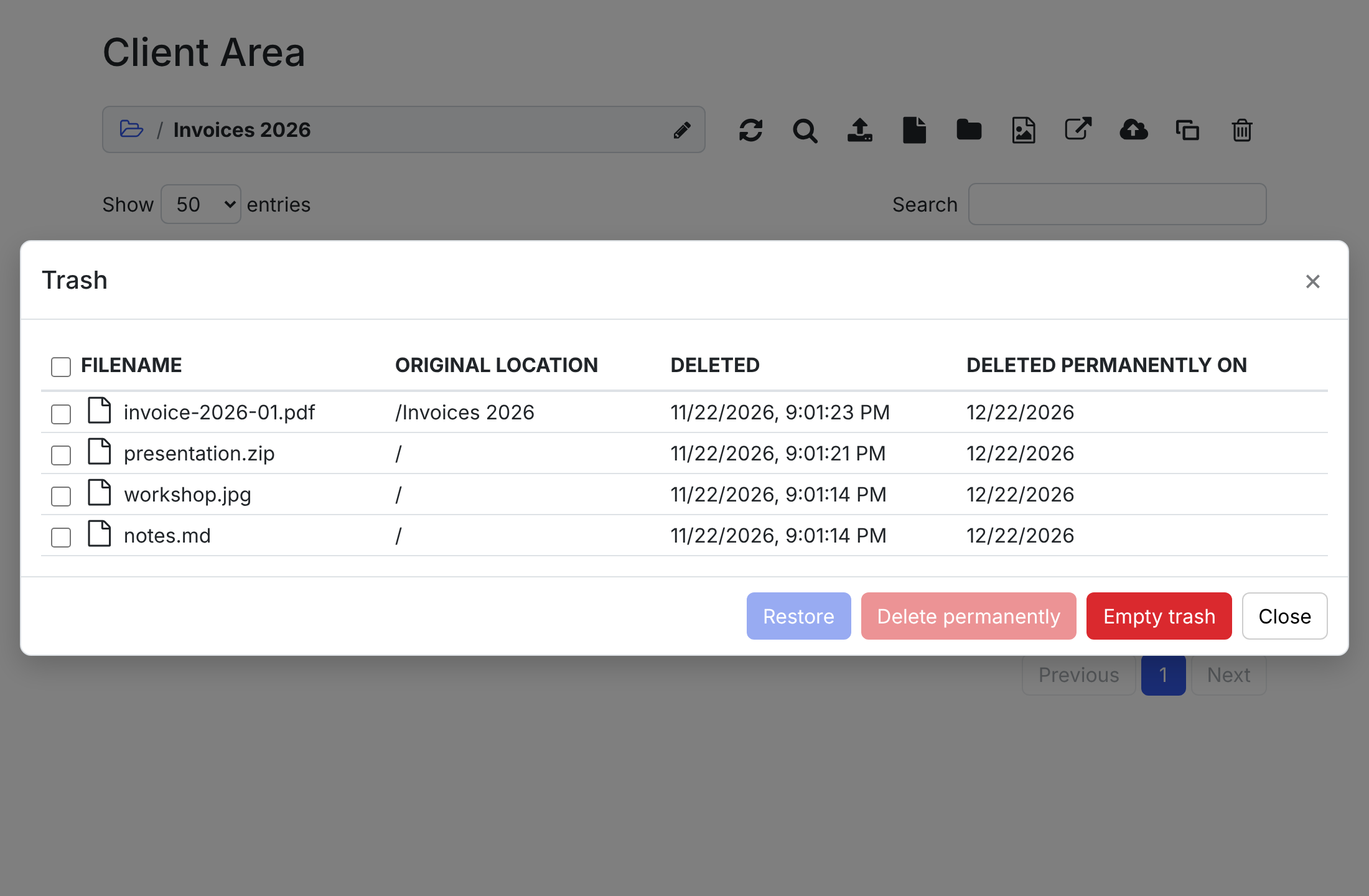
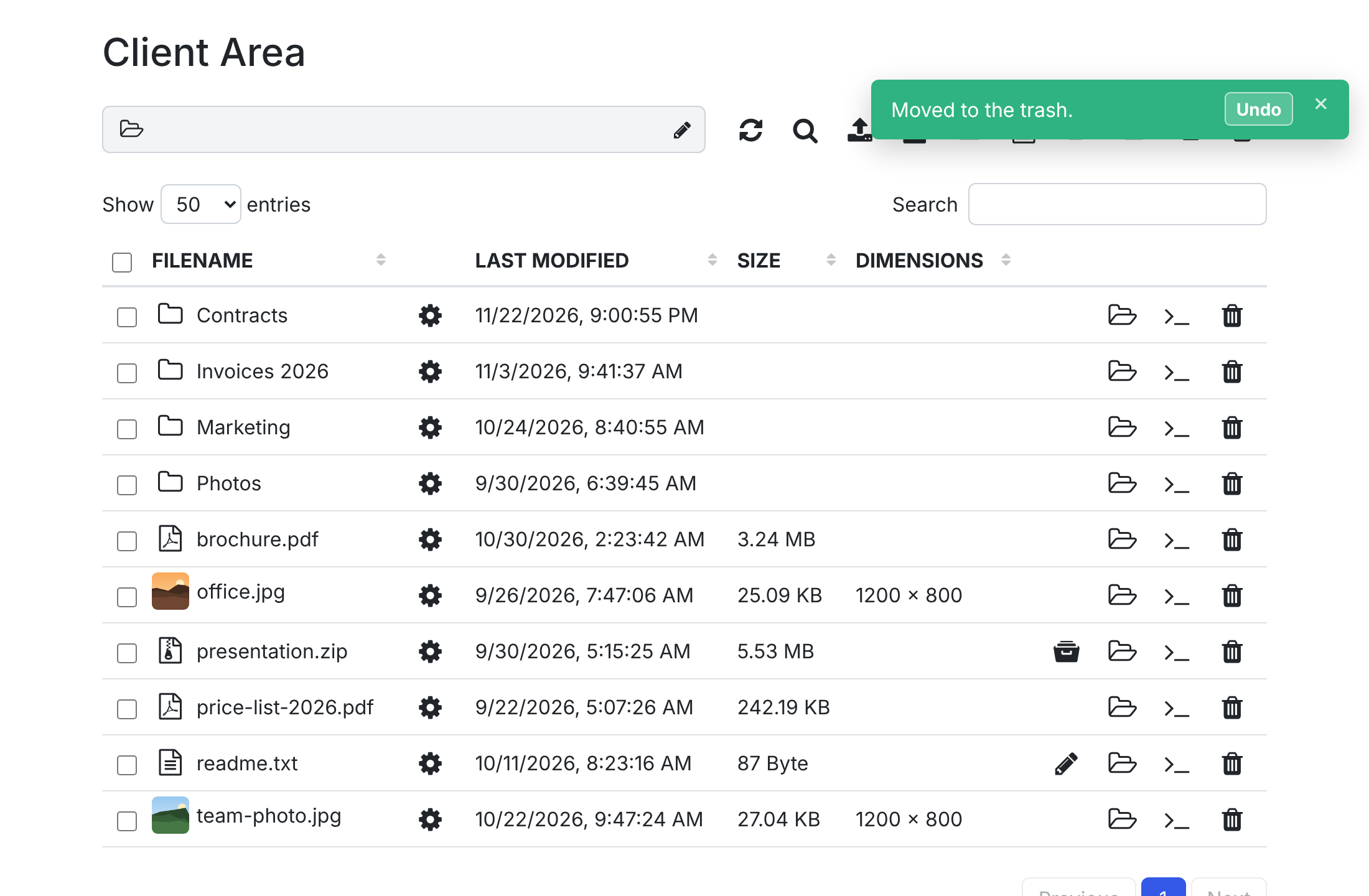 - The Trash button in the toolbar opens the trash. It lists all deleted items with their original location, the date of deletion and the date when they will be deleted permanently.
- Selected items can be restored or deleted permanently (after a confirmation). Empty trash deletes all items permanently.
- Restoring never overwrites a file: if the name is taken in the meantime, the item is restored under a new name like
name (1).ext. Folders of the original location which no longer exist are created again.
- Keep Items in Trash defines after how many days items are deleted permanently (default: 30 days, 0 = keep forever). Expired items are removed the next time something is deleted.
The trash needs the permission Delete Files / Directories.
Where is the Trash Stored?
The trash is the hidden folder .ifm-trash inside the installation directory. Each deleted item is stored in its own folder with a random name. The trash folder is never listed or downloaded through the file manager (also not in zip files of the parent folder) and only accessible through the trash dialog. With UserAccess client subfolders, each client has their own trash.
Repository protects the trash folder with a deny-all .htaccess file. If your web server ignores .htaccess files (e.g. nginx), deny web access to the folder in the server configuration, or keep the trash disabled for sensitive files.
Please note that items in the trash still use disk space on your server until they are deleted permanently.