Security and Protected Mode
Protected mode for your files, safe file delivery and the built-in security controls of Repository Stack 3.
Protected Mode
Setting: Security → Protected Mode (off by default)
Without protected mode, the login only protects the user interface of the file manager. The files themselves are stored in a folder of your web space, so everybody who knows the address of a file (e.g. https://mydomain.com/files/contract.pdf) can open it.
With protected mode, files are only delivered through Repository, after login, and never directly by the web server:
- All links, thumbnails, previews and copied links point to the Repository page instead of the file itself.
- Visitors who are not logged in cannot open the files. With basic authentication, they see the login form first and get the file right after logging in, so links you send to others keep working.
- Repository adds a deny-all block to the
.htaccessfile of the installation directory. Existing rules in this file are kept. The block is marked with# BEGIN IFM protectfilesand# END IFM protectfiles. .htaccessfiles can no longer be created or changed through the file manager, also not with Show Htdocs.
Requirements
- An authentication must be selected (Basic, UserAccess or Sitelok). With "None", everybody who can open the page can also open the files.
- An Apache web server with
.htaccesssupport, or an installation directory outside of the web root (then the files cannot be reached directly anyway, which is the safest setup). - A subfolder as installation directory. The folder containing the Repository page itself cannot be locked.
Warnings
Repository checks whether the protection can work, and shows a warning in the file manager if it cannot be verified:
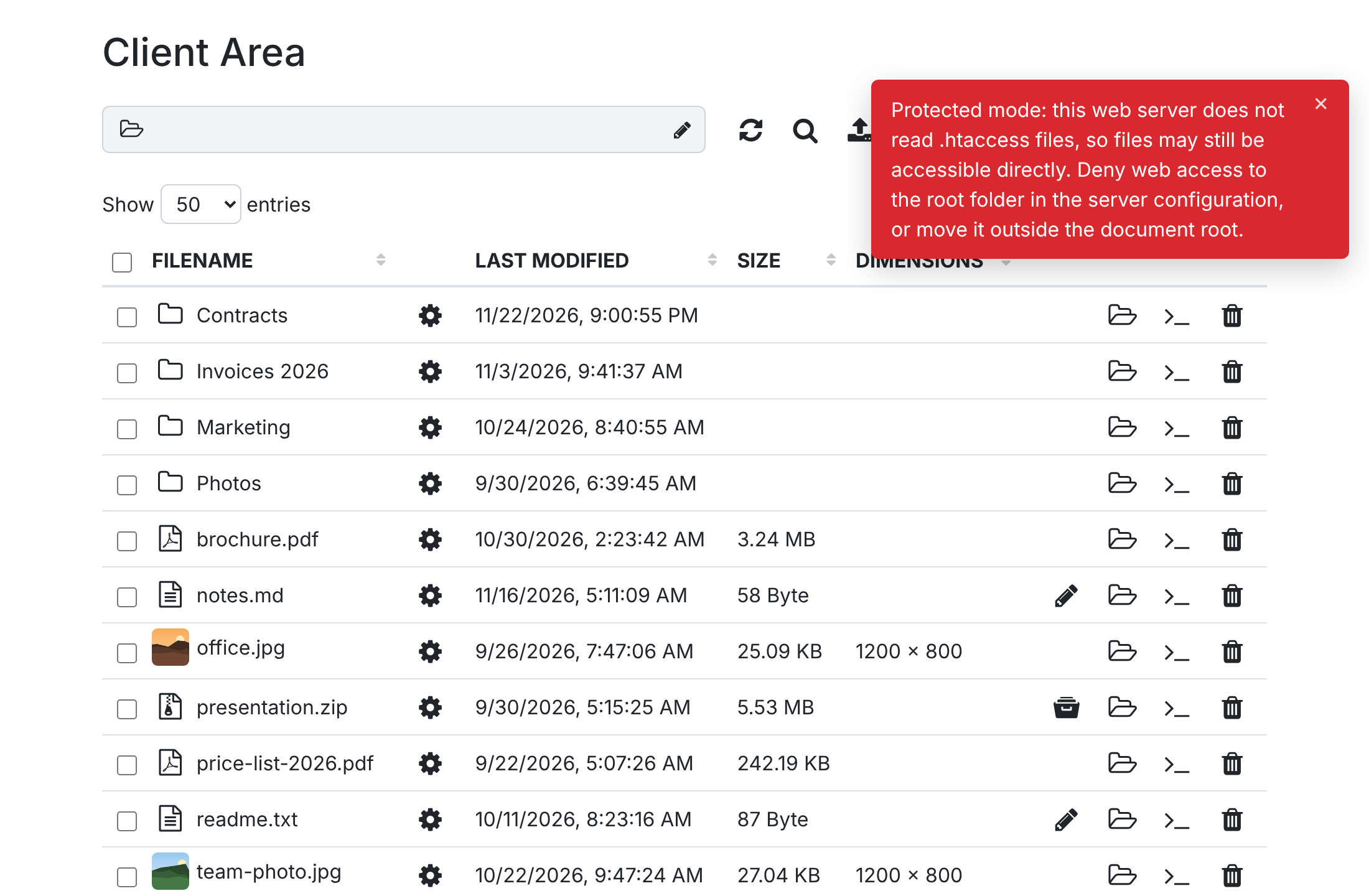
- The web server does not read .htaccess files (e.g. nginx, IIS, Caddy): files may still be accessible directly. Deny web access to the folder in the server configuration, or move it outside of the web root. For nginx, if the folder is served at
https://mydomain.com/files/, the rule is:location ^~ /files/ { deny all; }. Ask your hoster for help if you cannot change the server configuration. - The .htaccess file grants access: other rules in the
.htaccessfile of the installation directory allow access, which may lift the protection. Remove those lines. - The .htaccess file could not be written: check the write permissions of the installation directory.
- The root folder contains the page running the file manager: use a subfolder as installation directory.
Please note: links to files which you have published or sent before enabling protected mode point to the file itself, and no longer work once the folder is protected. Copy the links again from the file manager.
Safe File Delivery (always on)
Uploaded files could contain scripts, for example HTML or SVG files. In Repository 3, files are only shown in the browser if their type cannot run scripts: images (except SVG), audio, video, PDF and plain text. HTML, SVG, XML and all other files are offered as downloads. This way, an uploaded file can never run scripts on your website.
In addition, videos and audio files can be played from any position (byte ranges), and files with special characters in their names are downloaded with the correct name.
Built-in Security Controls (always on)
- Login throttling for the basic authentication (see Authentication).
- CSRF protection: all actions which change files are protected with a security token of the current session, so other websites cannot trigger actions in the name of a logged in user.
- Path checks: all file operations are locked inside the installation directory. Path traversal (e.g.
../) is refused, and folders next to the installation directory with a similar name are no longer treated as part of it. - Safe archive extraction: archives containing entries which would be extracted outside of the current folder ("zip slip") are refused.
- Remote upload restrictions: remote uploads only accept
httpandhttpsaddresses of public servers. Addresses of the local network or of the server itself are refused. - File extension filter: the blacklist and whitelist of file extensions applies to uploads, newly created files and renamed files.
Further Security Considerations
- Use an authentication, choose a random username and a strong password, and never keep the default password hash.
- Do not show the page with Repository Stack 3 inside the navigation.
- Only enable the permissions which are really needed.
- Keep the file extension blacklist active. Executable files like
phpmust never be uploaded into a folder of your web space. - Use HTTPS for your website.